Introducing MLT Player
There is a category of media software that almost disappeared.
A normal media player is designed to play a file. An NLE is designed to turn that file into part of a larger editing project. But there used to be something in between: software where the media file itself was the workspace.
QuickTime 7 Pro was probably the clearest example. You could open a video, inspect it frame by frame, make a precise selection, trim it, export a frame or a new file, and close the application. You did not have to build an editing project around the source before you could do useful work with it.
I have missed that kind of software for years. MLT Player is my attempt to build it again for Linux.
The ideas behind an NLE are good. Layering, project organization, bins and precise trimming are all useful. The problem is that those ideas tend to arrive bundled with the entire NLE, and once you step down to a normal player, nearly all of them disappear.
That is the space I wanted MLT Player to occupy. Not a timeline with tracks.
Layered video without tracks.
Open a video. Look at it closely. Trim it. Put another video or an image over it if you need to. Move it, resize it, export it, and move on. And the application had to stay light enough that opening it did not feel like beginning an editing session.
The middle disappeared
Media software has become strangely polarized. On one side are players built around consumption: decode the file reliably, give you transport controls, and stay out of the way. On the other side are editors built around construction, which assume you opened the media because you intend to assemble something larger.
Both make sense. But there is a huge amount of work between those two activities.
Sometimes I am not watching a video for entertainment, and I am not editing a film. I am inspecting something. I want to find a particular section, know exactly which frame something happened on, cut off the beginning and end, place an image over the video, compare a few moments, and mark important points to come back to later. None of that should require turning the source into an editing project. At the same time, a normal player does not give me enough.
Why not Shotcut or LosslessCut?
There are already good tools on either side of this space.
Shotcut is also built on MLT, and it is a full nonlinear editor. That actually helps clarify what I am doing. Shotcut uses MLT to build a timeline-oriented editing environment. MLT Player uses the same framework for the work that comes before a timeline is necessary.
LosslessCut approaches the problem from another direction. Its great strength is making cuts without re-encoding. MLT Player is different: trimming inside the application is non-destructive, and video export renders through MLT into the chosen output format rather than stream-copying.
MLT Player overlaps with both, but its center of gravity is different. The goal is not to replace an NLE or a specialist cutting tool. It is to make the territory between them useful.
A file explorer finds files. It does not organize work.
I do not want a media application to take a perfectly ordinary file on disk, import it, and then act as though the application owns the relationship between me and that file. The file already has a home.
So MLT Player starts there. Explorer opens an ordinary directory and shows the media already inside it. There is no mandatory ingest and no proprietary media store between the application and the source.
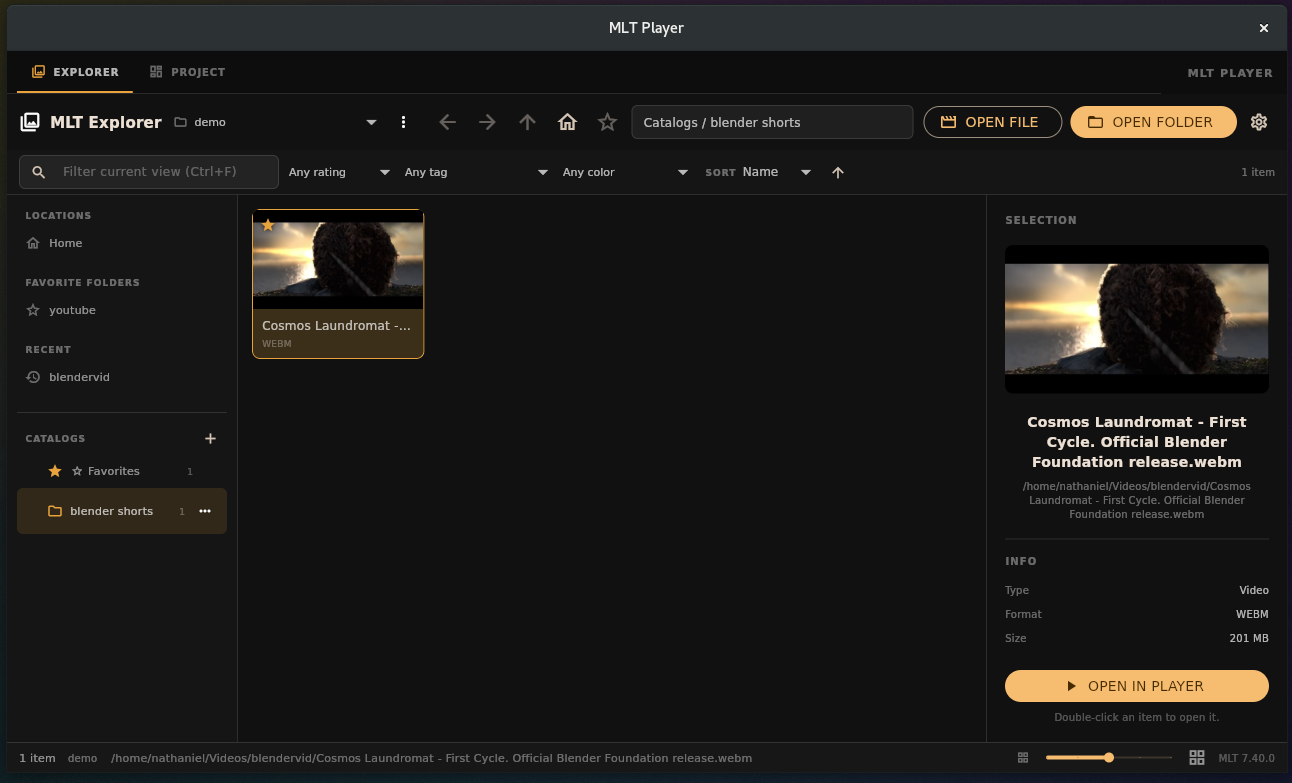
Explorer works directly with the media already on disk.
Demo footage shown in the screenshots is from Cosmos Laundromat: First Cycle by Blender Studio.
That works well until the collection becomes large. A filesystem is excellent at answering one question: where is this file? It is much worse at answering: why do I care about this file?
A video might live in one folder while being relevant to several things I am working on: a set of interviews, a particular subject, clips to review later, a collection I am preparing for somebody else. I do not want four copies of the file just because it has four meanings.
Larger editing systems get this right. Project-level organization is better than pretending directory structure alone can represent the work. But MLT Player had to stay lighter than a full cataloging system.
So the media stays on disk exactly where it is, while Projects provide an organizational layer above it. A Project can contain Catalogs. Catalogs can contain other Catalogs. One media file can belong to several Catalogs without being moved or duplicated.
The filesystem answers where the file is. The Project answers what I am doing with it.
That distinction became one of the central ideas of the application.
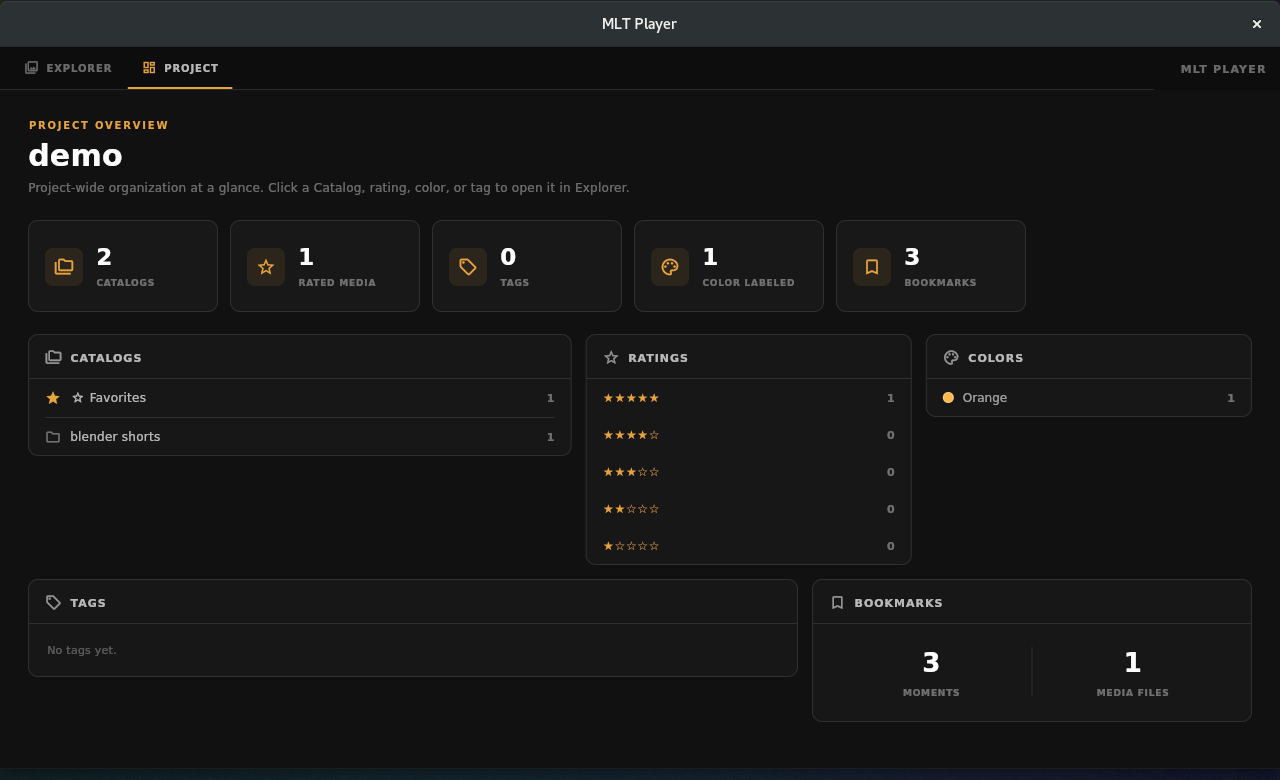
The Project dashboard adds an organizational layer above the filesystem.
The organization also stays visible and direct. Click a parent Catalog and its child Catalogs appear as simple tiles in the same space where media appears, rather than as a tree hidden in a sidebar or an empty screen claiming the parent contains nothing. Ratings, tags, color labels, favorites and bookmarks work the same way: they add ways of finding media without changing where it lives.
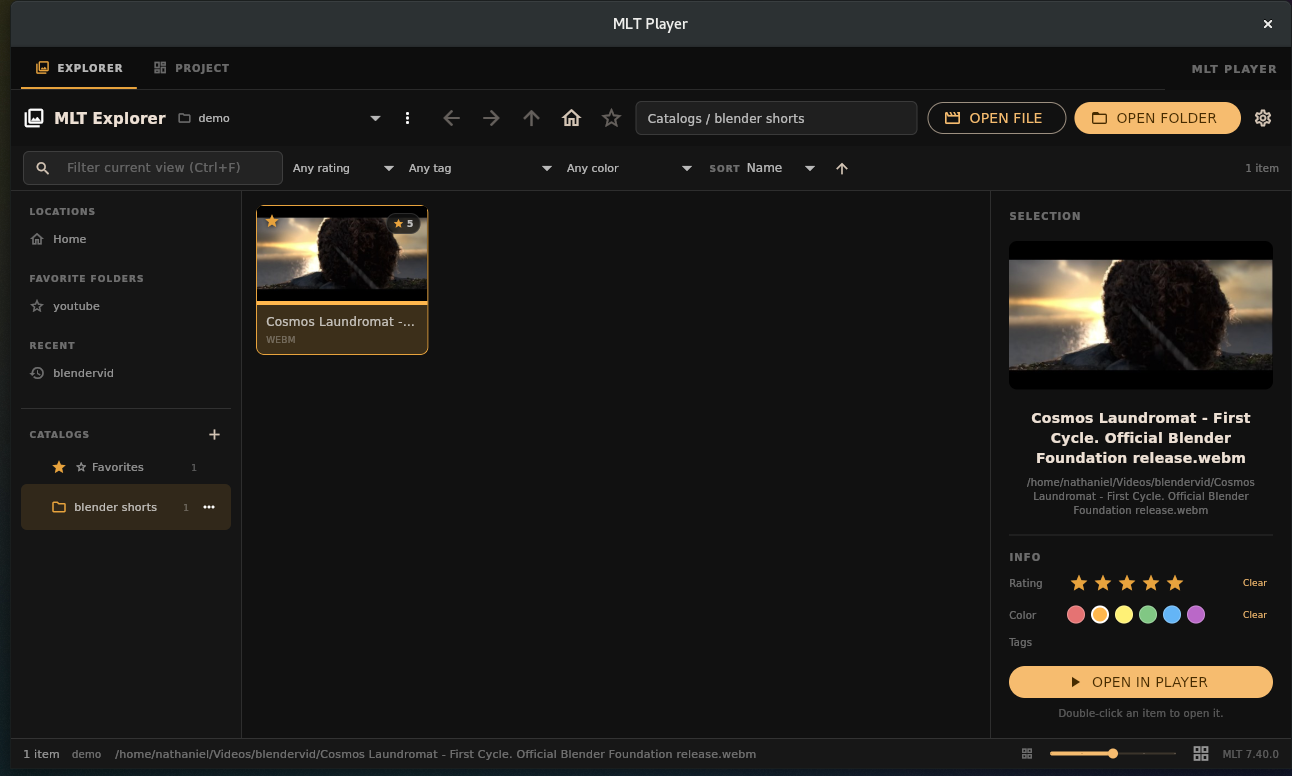
Ratings and other Project metadata add meaning without moving the source file.
A video should not look like one thumbnail
A video is one file. Visually, it is hundreds or thousands of different moments. Most file browsers represent all of that time with one thumbnail, which is an extraordinarily poor compression of what a video contains.
A forty-minute recording may contain people entering and leaving, several locations, changing slides, different camera angles, long pauses, and brief moments that matter more than everything around them. The file browser says: here is one rectangle. To understand the rest, you have to open the video and let time pass.
MLT Player has a Storyboard view that turns the video into an array of frames sampled across its length. Instead of time moving past you in one dimension, time becomes something you can scan in two. A person appears and disappears. A presentation begins. The camera changes. A particular room returns later. A pattern that would take minutes of scrubbing to discover can become obvious almost immediately.
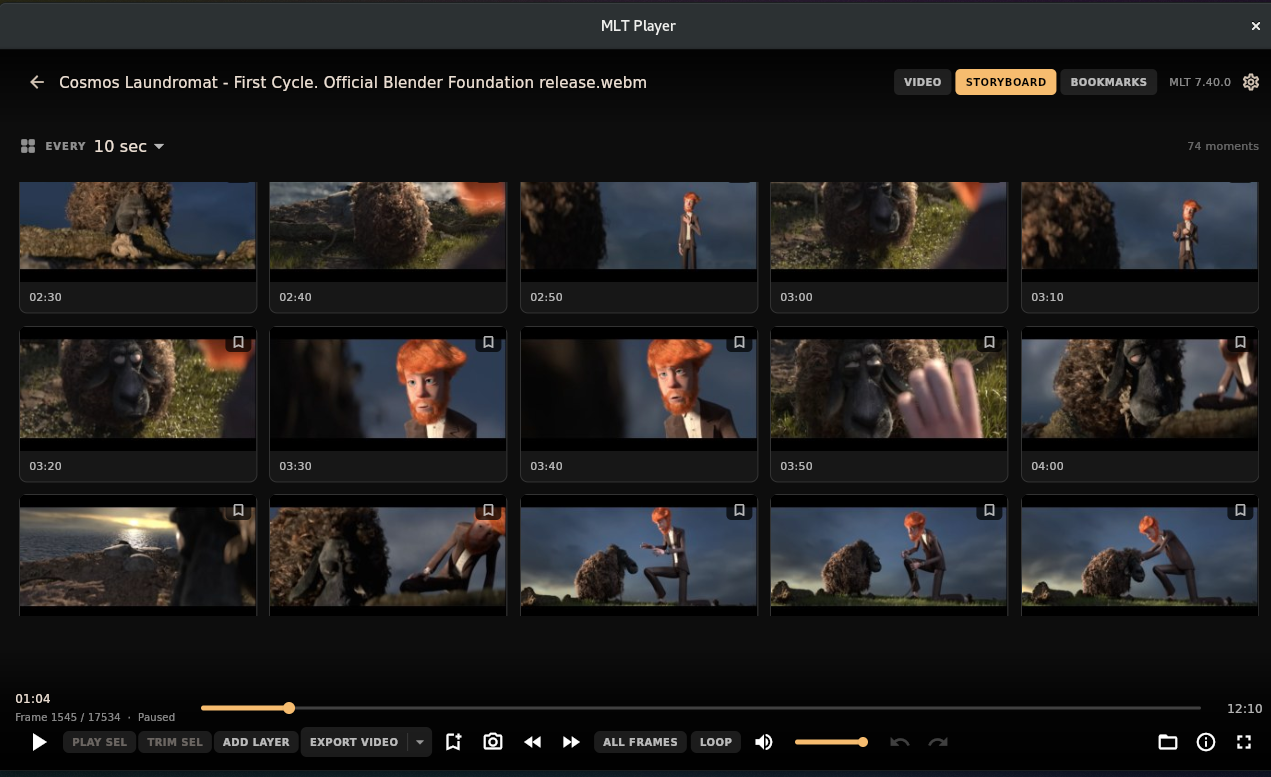
Storyboard turns the length of a video into something the eye can scan at once.
The computer already had every one of those frames. The important change is exposing them in a form the eye can compare at once. It helps me look at a video, rather than only play it.
Find the phrase. Find the moment.
The same principle applies when the important thing is not visual. If I remember a phrase from a thirty-minute interview, I should not have to scrub around hoping I recognize where it was said.
MLT Player can load an SRT transcript alongside the media and make it searchable. Search for the phrase, click the result, and go to that moment.
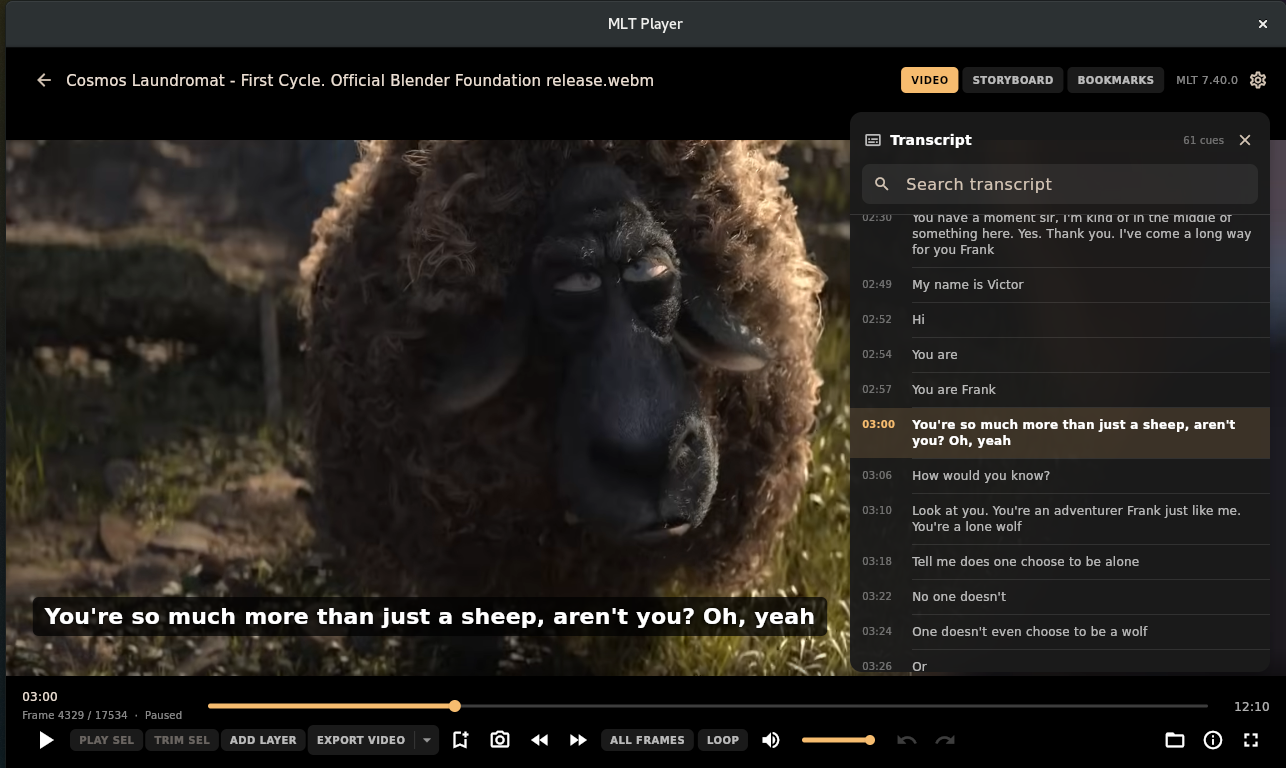
A searchable SRT transcript turns spoken words into direct navigation.
Video normally makes you search sequentially. A transcript gives time an index.
The inverse of Redleaf
MLT Player also grew out of another project of mine, Redleaf, a system for organizing and navigating documents, transcripts, entities and relationships. But the relationship between the two is intentionally backwards.
Redleaf begins with meaning. You might start with a person, an organization, a phrase or a relationship, move into a document, then into a transcript passage, then down to the timestamp, and finally to the media itself.
MLT Player begins at the opposite end. You start with the media, move through time to an exact frame, then to the transcript, and climb back up toward what it means.
The two applications meet at the timestamp.
That is why I do not want to merge them into one enormous system. Redleaf is good at indexing and relating information. MLT Player is good at working with media. The point is not that one can launch the other. The point is that they approach the same material from opposite directions.
Redleaf moves through meaning. MLT Player moves through media. They meet where meaning becomes time.
Bookmarks are soft screenshots
Finding an important moment is only half the problem. Once I find it, I need a way to keep it.
A bookmark in MLT Player stores an exact source-frame position. It shows a visual preview, but the preview still points back to the media. I think of bookmarks as soft screenshots. A screenshot is detached from its source; it becomes another file. A bookmark says: this exact moment matters, and I still know where it came from. Click it and return to the frame.
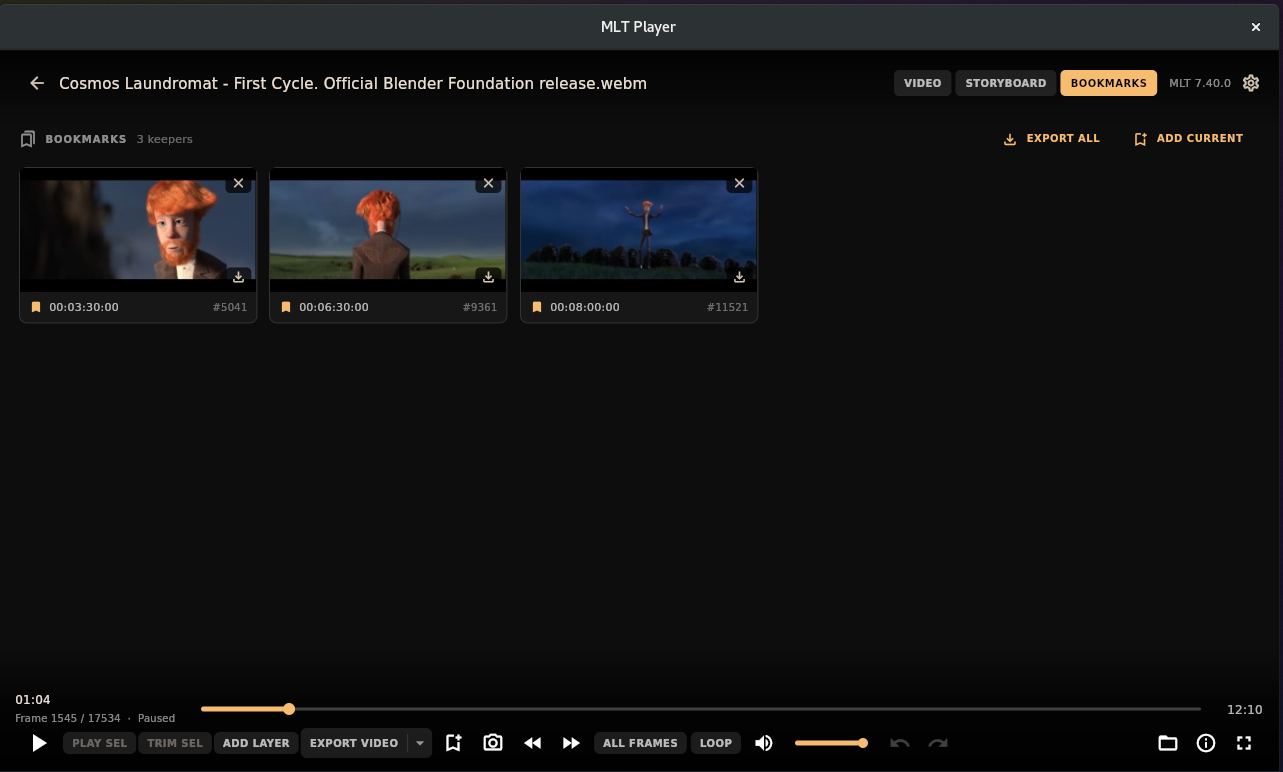
Bookmarks collect exact moments without detaching them from their source.
A bookmark can also open into its own profile. The frame appears alongside the surrounding SRT transcript, so the image and what was being said at that moment stay together. I can right-click the particular transcript line I am pointing out and mark it as the highlight line for that bookmark. The surrounding cues remain there for context, and clicking any of them jumps back to that point in the video.
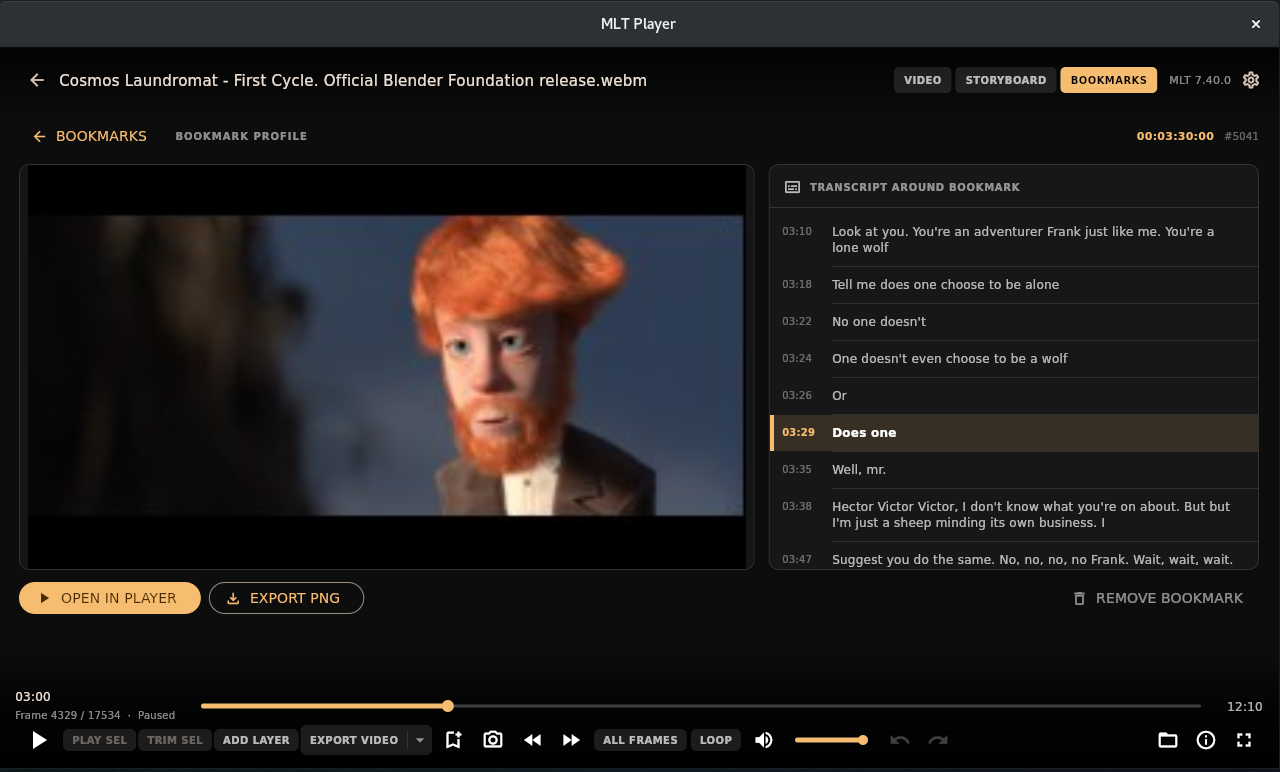
A bookmark profile keeps the frame, surrounding transcript and chosen highlight line together.
When reviewing a one-hour recording, I might find eight moments that matter and bookmark them as I go. Later I can see them together instead of scrubbing again. And sometimes that collection of moments is itself the output: MLT Player can export all bookmarked frames as images in one operation.
So instead of telling someone to watch an hour-long recording and pay attention to twelve forty-three, eighteen oh two and twenty-six seventeen, I can send the images. These are the moments. If you need the context, the bookmark still knows exactly where each one came from.
Trim the video and move on
The editing side follows the same philosophy. I did not want a timeline. I wanted the operations that are useful before a timeline becomes necessary: set an In point, set an Out point, play the selection, trim it, undo, redo, export.
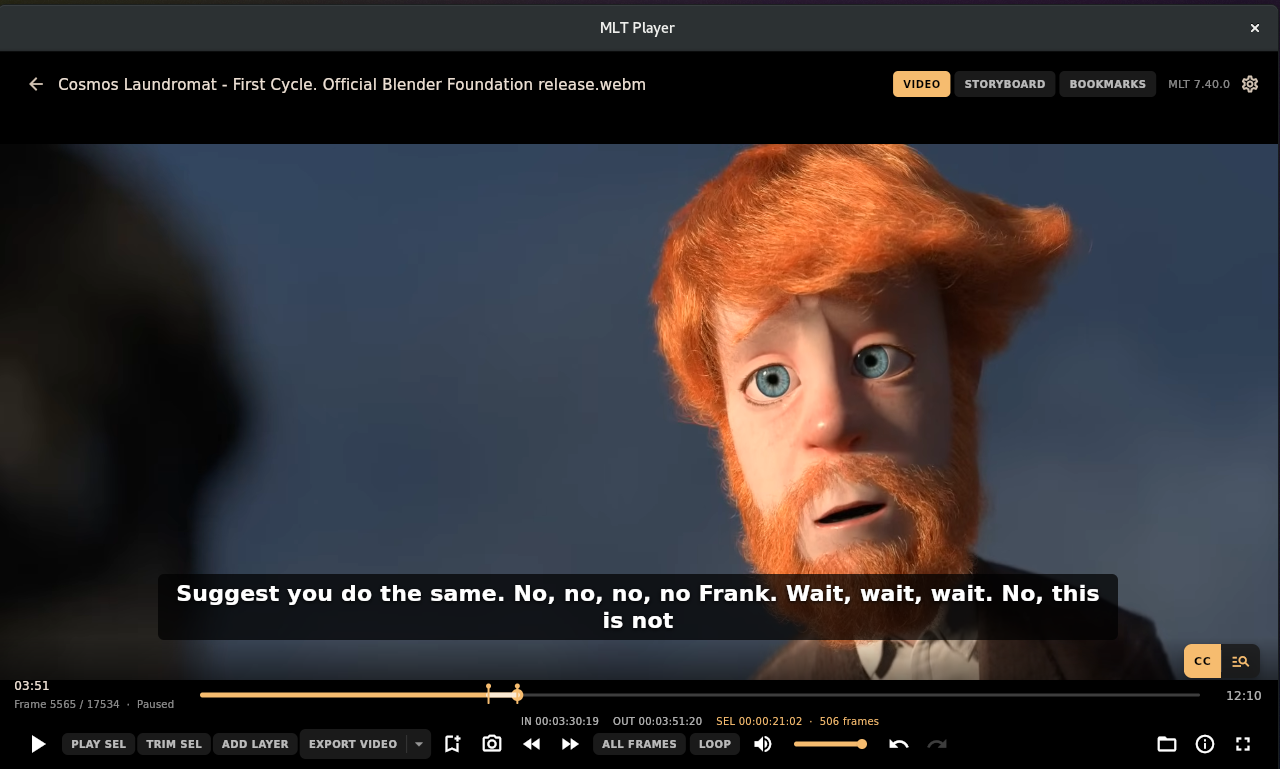
Exact In and Out points define the part of the source that matters.
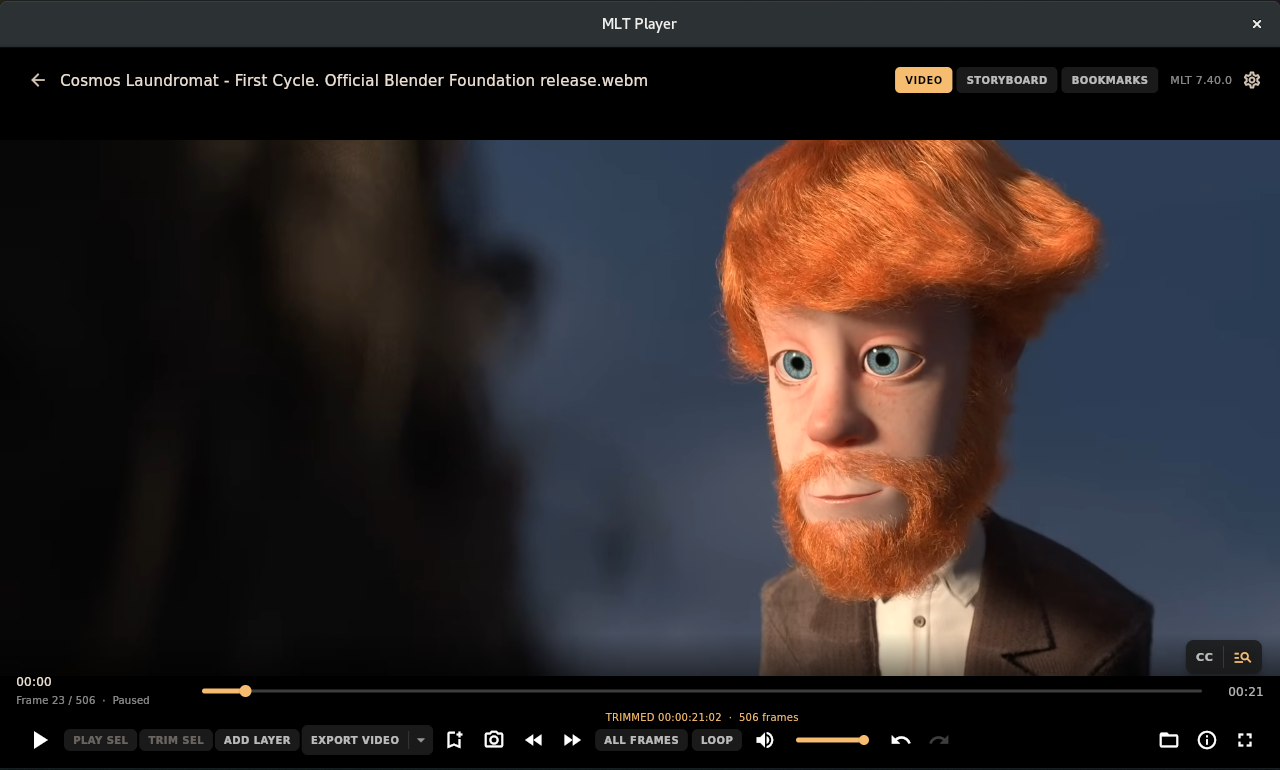
The source can then be trimmed non-destructively without building a timeline.
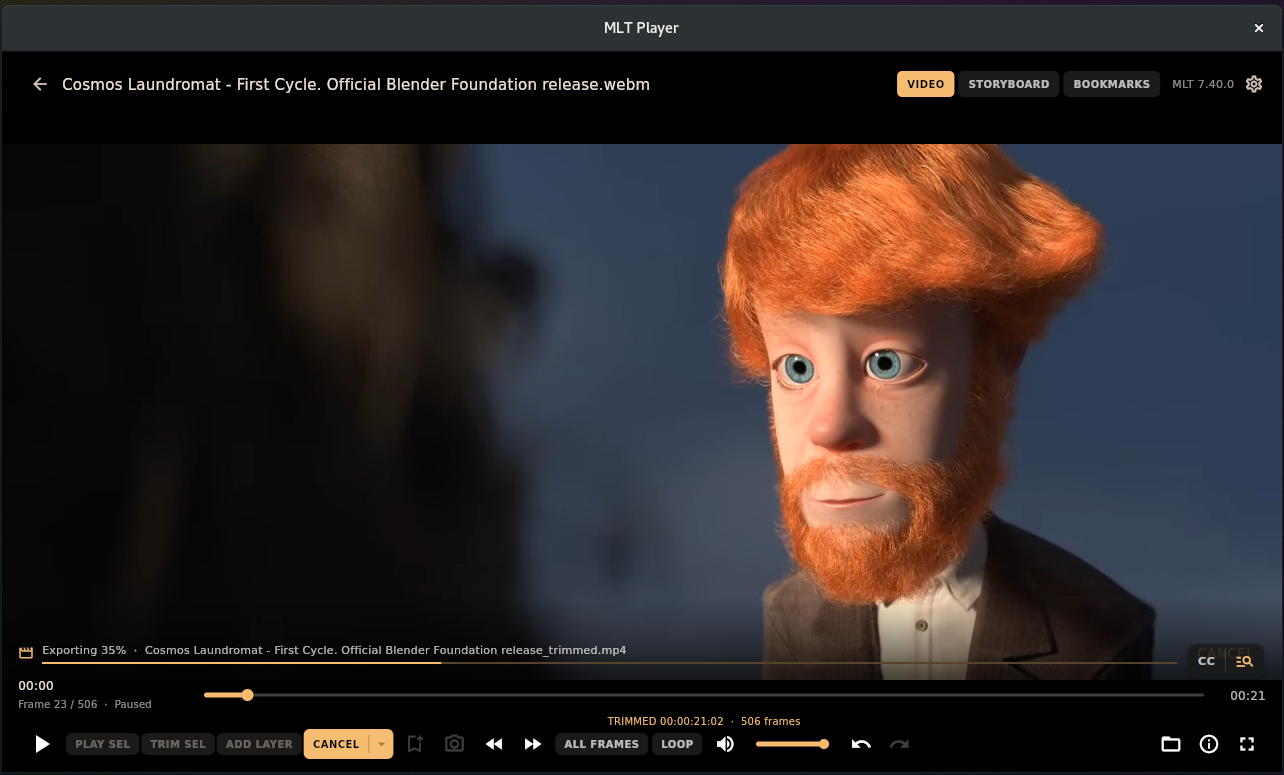
The trimmed result can be exported directly when the small job is finished.
The same is true of layering. Wanting to put an image or video over the source does not mean I need tracks. It means I need a layer.
So MLT Player has a small layered composition system. Each layer has its own timing, source range, position, scale, opacity and audio gain. There is no track hierarchy, because there is no reason to introduce one until the work actually becomes a timeline.
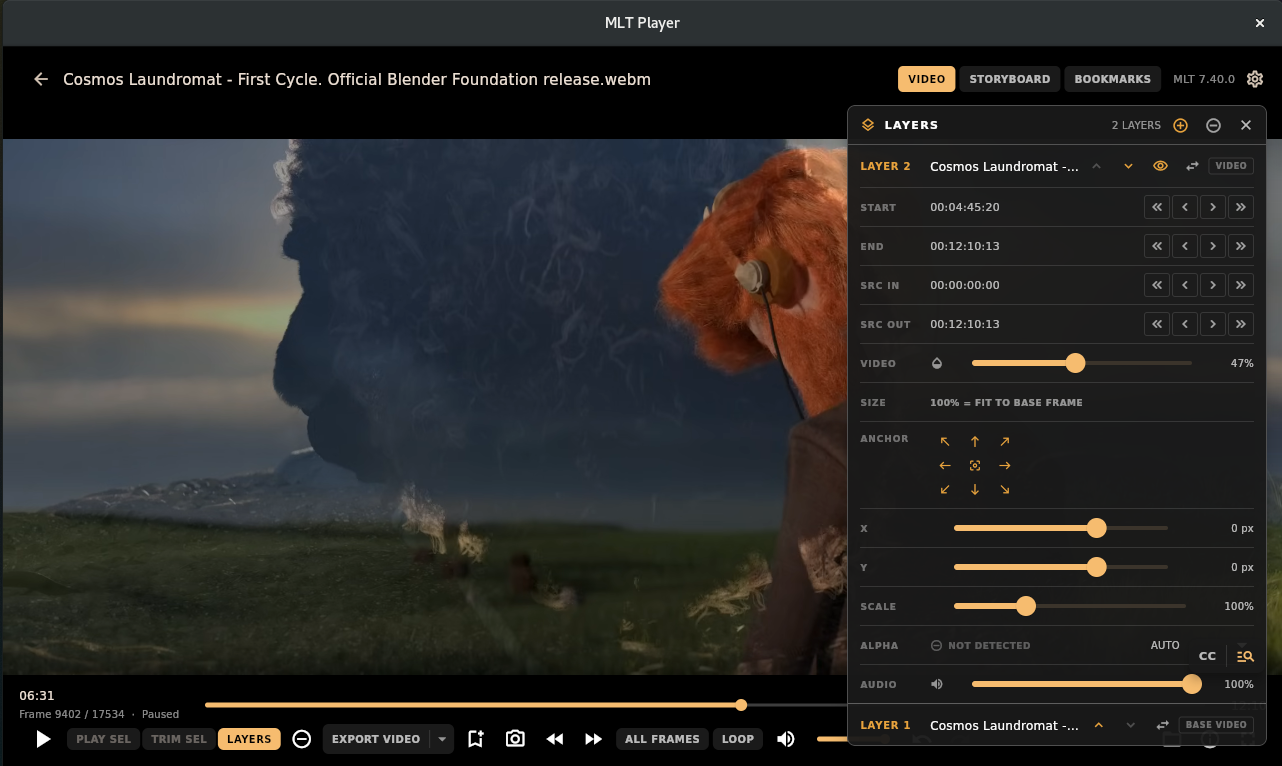
Layered composition without introducing a track-based timeline.
Lightweight does not mean imprecise
The application is supposed to feel lightweight. That does not mean the media handling can be casual.
Flutter owns the application. MLT owns the media.
Underneath a simple player interface, there can be several different notions of where playback currently is: the transport position, the producer position, the latest decoded frame, the frame being presented to the display, and the source frame an export should resolve. They do not automatically agree.
I learned this the hard way chasing a bug where nearly every diagnostic said the correct frame was loaded, yet the image on screen was visibly wrong. The transport was at frame 2451, the decoder reported frame 2451, the image buffer belonged to frame 2451, and another presentation layer was still showing the user something else.
That is the complexity hidden under a very simple expectation: show me this frame.
If I step one frame, I want one frame. If I bookmark a moment, I want the exact source frame, and if I export that bookmark later, I want the same frame. If a layered composition looks one way in preview, export should not quietly interpret it differently.
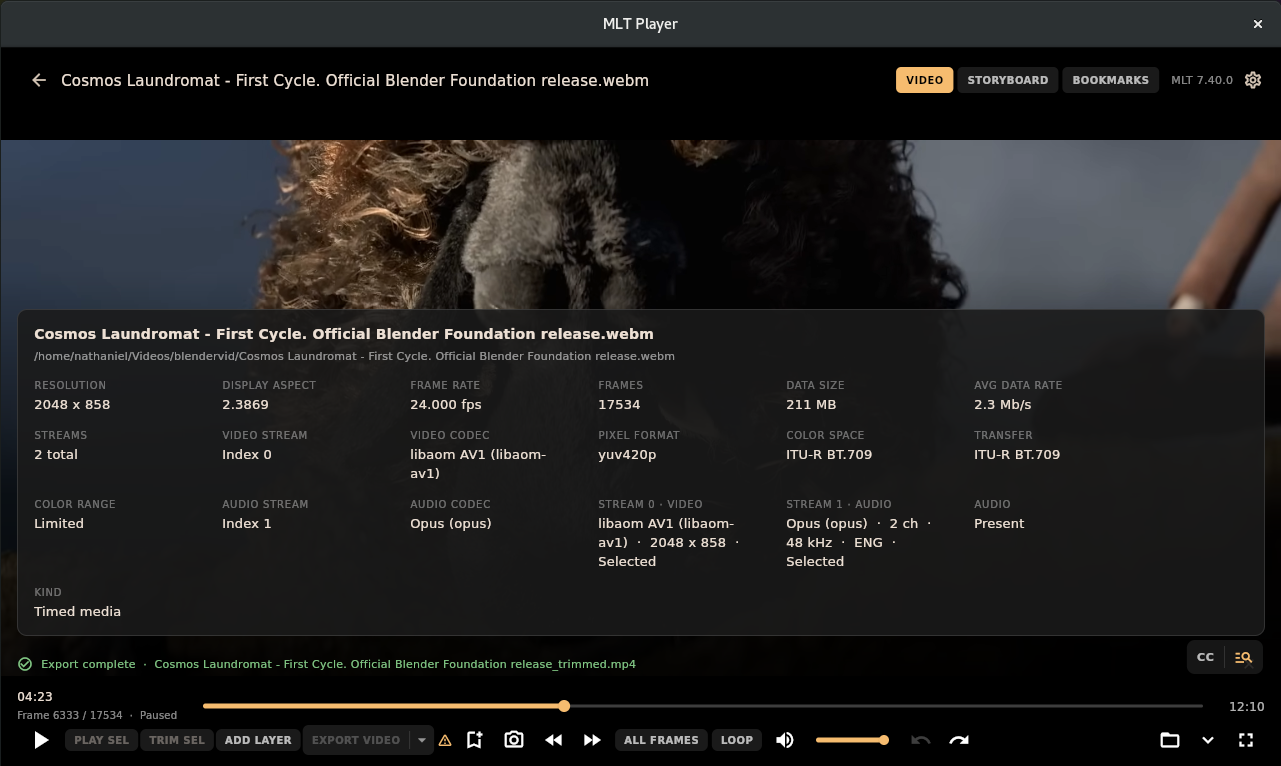
The media inspector exposes codec and source details for the current file.
The live preview and the export pipeline are separate internally, because playback and deterministic rendering have different needs, but they derive their decisions from the same composition rules. MLT Player can export delivery video, higher-quality masters, audio, still frames and image sequences, and bookmarks individually or in bulk. In every case, I want to be able to trust what I am looking at.
The small things matter
Some of my favorite parts of MLT Player are not major features. Right-click a thumbnail and reveal the source file in the desktop file manager. Create a nested Catalog and it appears as a tile when you open its parent. Export every bookmarked frame instead of repeating the same action twenty times.
These are not features you build a marketing page around. But they determine whether software feels like something you can actually live in. The better the small transitions between tasks, the less you notice the application itself.
The software between the player and the editor
I do not want another player that treats video as a rectangle with transport controls underneath it. I do not want another media catalog that requires me to surrender the filesystem. And I do not want to open a full NLE every time I need to understand, trim, mark, layer or export something from a video.
The ideas inside an NLE are useful. The mistake would be assuming the NLE is the only place they are allowed to exist.
Project organization is useful without a timeline. Layers are useful without tracks. Frame-exact trimming is useful without an edit sequence. Bookmarks are useful without creating screenshots.
The middle can exist.
Open the media. See what is there. Find the part that matters. Keep the moments you care about. Make the small change. Export it. Move on.
That is MLT Player.
Try it
MLT Player is open source, released under the MIT license, and actively developed for Linux with Flutter and MLT. The current validated baseline is MLT 7.22, with development also exercised against newer builds on my own systems. It is separate from MLT’s own melt command-line utility: it uses MLT as its engine but provides its own application, organization, Explorer, Player and workflow.
It is still evolving software rather than a finished release, but it has reached the point where I am using it for real work, which is why I finally wanted to write this introduction. Build requirements and setup instructions are in the repository README.
Repository: github.com/nathanfx330/MLT-Player
P.S. None of this means I have anything against nonlinear editors. I may eventually make one myself. I already have the name: Spiffy Cuts. More seriously, building MLT Player and R3nder has been laying down a more understandable path for building custom applications on top of MLT, and that deserves its own post.